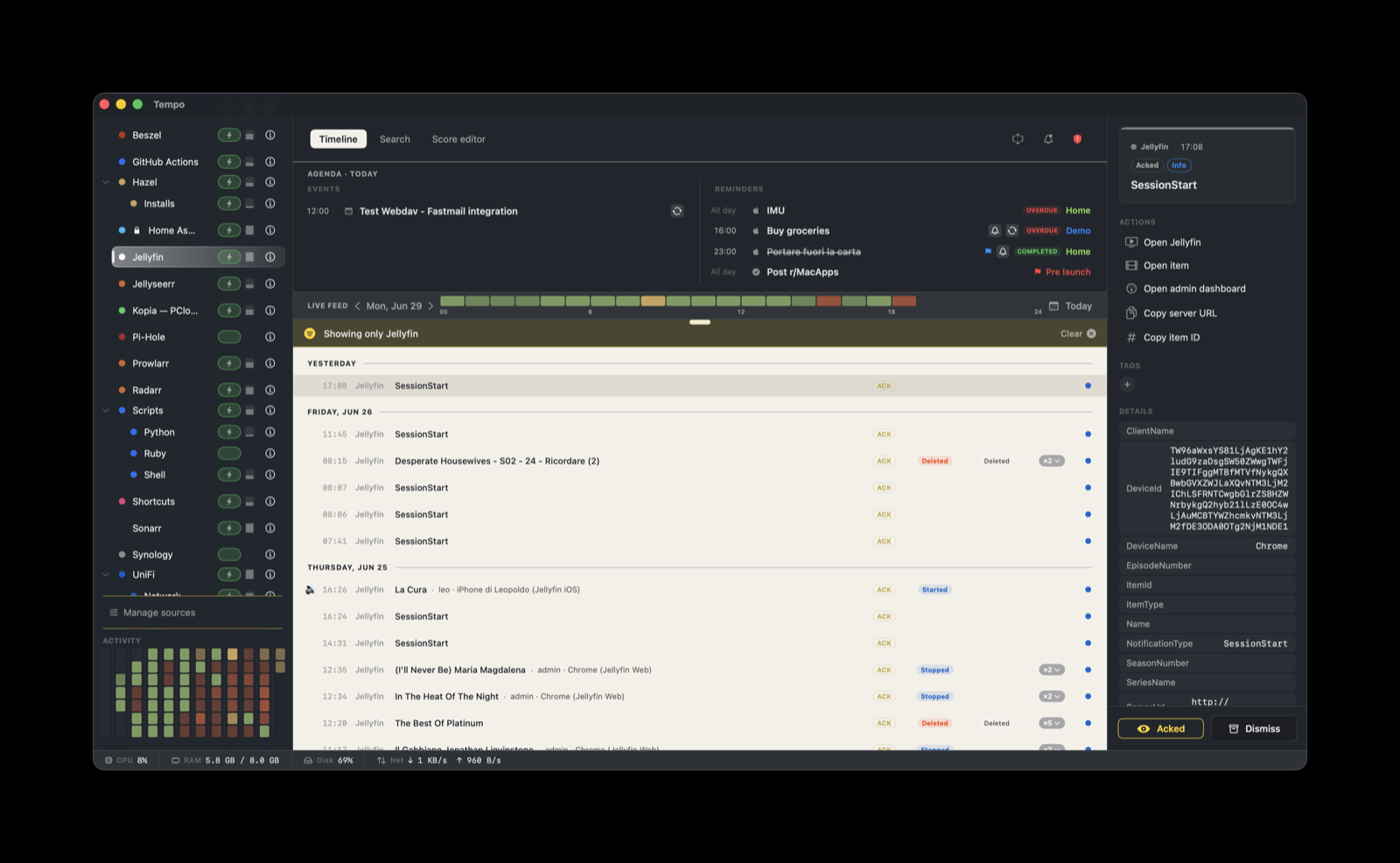
This score renders events from a self-hosted Jellyfin media server on the Tempo timeline: new media added to the library, playback start and stop, authentication failures, scheduled task results, and plugin changes. It is read-only. The actions open the Jellyfin web UI, an item’s detail page, or the admin dashboard in your browser, and copy the server URL or item ID. Nothing writes back to Jellyfin.
How it works
Jellyfin has no native outbound notifications, but its official Webhook plugin does. The plugin watches server events and POSTs a JSON body to a destination you configure. Tempo’s ingestion server is a valid destination, so Jellyfin posts to Tempo directly. There is no relay and no Tempo-side helper for this score: the plugin is the only moving part you set up.
The score handles what happens once an event lands: the badge label, the severity, the grouping, the indicator emoji, and the action buttons. Severity comes from the event’s NotificationType (see the table below), and because the score sets senderSeverityWins, a severity that you put into the payload yourself overrides the score’s rule.
Setup
You need Tempo running with the Jellyfin score enabled, and administrator access to Jellyfin.
1. Enable the score and create a token
- In Tempo, open Manage Sources and enable Jellyfin. Built-in scores are activated there. Only the generic Scripts source auto-installs.
- In Settings → Ingestion, create a token bound to
org.jellyfinand copy it. - Note your Tempo ingest endpoint:
http://<your-mac-ip>:7776/ingest. Use the LAN IP or hostname of the Mac that runs Tempo, since Jellyfin usually runs on a different machine.
2. Install the Webhook plugin
- In the Jellyfin web UI, open Dashboard → Plugins → Catalog.
- Find Webhook, install it.
- Restart the Jellyfin server when prompted (Dashboard → Restart).
3. Add a Generic Destination
-
Open Dashboard → Plugins → Webhook.
-
Click Add Generic Destination.
-
Fill in the form:
-
Webhook Name:
Tempo -
Webhook URL: your ingest endpoint, for example
http://192.168.1.10:7776/ingest. Keep Jellyfin on the plain port7776. The plugin’s payloads are not compatible with Tempo’s TLS port8776, where the request arrives with an empty body. This is a known limitation shared with the UniFi score. Playback and library events on a trusted LAN are fine over plain HTTP. -
Notification Types: tick the events you want. A quiet, useful starting set is Item Added, Playback Start, Playback Stop, Authentication Failure, and Scheduled Task Failed.
-
Request Headers: add the Tempo token header.
Key Value X-Tempo-Tokenthe token from step 1 Content-Typeapplication/json -
Template: paste the body below. This is the part that carries the metadata keys the score reads. Without these keys the actions and grouping have nothing to work with.
{
  "providerIdentifier": "org.jellyfin",
  "title": "{{#if Name}}{{Name}}{{else}}{{NotificationType}}{{/if}}",
  "eventType": "alert",
  "metadata": {
    "NotificationType": "{{NotificationType}}",
    "ItemId":     "{{ItemId}}",
    "ItemType":   "{{ItemType}}",
    "Name":       "{{Name}}",
    "SeriesName": "{{SeriesName}}",
    "Username":   "{{NotificationUsername}}",
    "DeviceName": "{{DeviceName}}",
    "ClientName": "{{ClientName}}",
    "ServerUrl":  "{{ServerUrl}}"
  }
}
-
-
Save.
Leave Playback Progress unticked. It fires roughly once a second during playback and floods the timeline.
4. Verify
Trigger one of the configured events, for example add a movie or fail a login. The event should appear in Tempo’s timeline within a couple of seconds, colored olive green, with the five default actions in the right panel.
What you’ll see
The score sets severity from the NotificationType field. Anything not listed falls through to the default Info.
| Notification type | Severity | Label |
|---|---|---|
AuthenticationFailure | error | Auth failed |
ApplicationError | error | Error |
*Failed (any) | error | Failed |
ScheduledTaskFailed | warning | Task failed |
PluginInstalled | info | Plugin |
PluginUninstalled | info | Plugin |
PluginUpdated | info | Plugin |
ItemAdded | info | New item |
PlaybackStart | info | Started |
PlaybackStop | info | Stopped |
| (anything else) | info | Info |
Playback start and stop events carry a subtitle built from the payload: ${Username} · ${DeviceName} (${ClientName}), so a row reads as who is watching, on what device, with which app.
Indicators
The score adds a small emoji in front of the row based on the item’s ItemType:
- 🔊 for
Audio - 🎥 for
Movie
Other item types, such as episodes, carry no indicator.
Grouping
Two common floods collapse into single entries through the score’s grouping rules. The window is six hours.
- Bulk imports stack per series. Every
ItemAddedfor anEpisodejoins a repeating stack keyed onadded:${SeriesName}. Importing a whole season collapses to one stack per show instead of one row per episode. This is why theSeriesNamekey in the template matters: without it the rule has no key to group on. - Deletions stack per series. Every
ItemDeletedjoins a repeating stack keyed ondeleted:${SeriesName}over the same window. - Playback start pairs with stop.
PlaybackStartopens a span keyed onplay:${ItemId}:${Username}, and the matchingPlaybackStopcloses it. A single watch session reads as one entry that resolves when it ends, rather than two loose rows.
Movies, authentication failures, and plugin events match none of these rules, so they render standalone, which is what you want for one-off events.
Actions
Five actions are attached to every event. All are read-only: they open a URL in your browser or copy a string.
- Open Jellyfin: opens
${ServerUrl}/web/. - Open item: opens the item’s detail page at
${ServerUrl}/web/index.html#!/details?id=${ItemId}. - Open admin dashboard: opens
${ServerUrl}/web/index.html#!/dashboard.html. - Copy server URL: copies
${ServerUrl}. - Copy item ID: copies
${ItemId}.
ServerUrl and ItemId come straight from the payload, so an action that opens an item only works when the event carried an ItemId. The address must be reachable from your Mac. A LAN URL is fine, as is a Tailscale or VPN address. Tempo does not connect to it; it only builds the link for your browser to follow.
Metadata keys the score reads
Every key below comes from the template in step 3. Drop one and the matching behavior stops working.
NotificationType: drives severity and matches the grouping rules.ServerUrl: builds the open and copy server actions.ItemId: the open-item and copy-item-ID actions, and part of the playback grouping key.ItemType: drives the indicator emoji and the episode grouping rule.SeriesName: the key for the added and deleted per-series stacks. Empty for movies and audio, which do not join those stacks.Username: part of the playback grouping key and the playback subtitle.DeviceName,ClientName: the rest of the playback subtitle.
Troubleshooting and limitations
- Events do not arrive. Confirm the Webhook URL points at the plain port
7776, not8776. The plugin’s body arrives empty over TLS. Check that theX-Tempo-Tokenheader matches the token bound toorg.jellyfin. - The timeline floods. Playback Progress is ticked. Turn it off in the destination’s notification types.
- An item action does nothing. The event had no
ItemId, orServerUrlis not reachable from your Mac. Plugin and authentication events legitimately carry no item. - Accented titles show entities. The plugin HTML-escapes string values, so
ìarrives asì. The JSON stays valid and the event ingests fine. This is a display detail, not a setup error. - No write-back. This score only reads from Jellyfin. There is no action that pauses playback, deletes media, or changes server state.