Tempo ships with two separate UniFi sources: UniFi Network for controller alarms (clients connecting and disconnecting, devices losing contact, threats) and UniFi Protect for camera detections (motion, smart detect, doorbell ring). Both are built in. There is no .tempo-score file to download and no Tempo-side helper to run. The UniFi controller posts to Tempo directly through its own webhook actions.
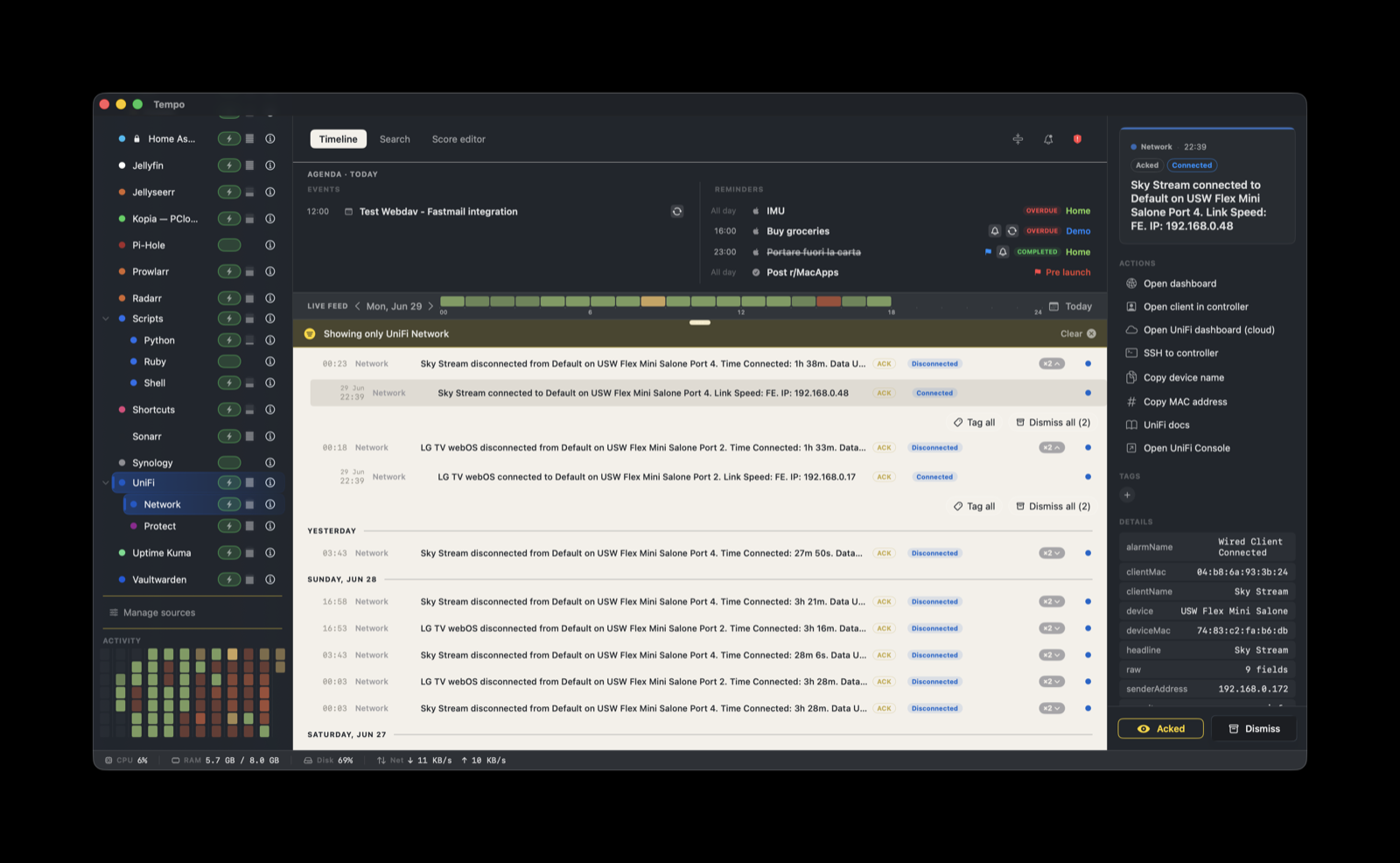
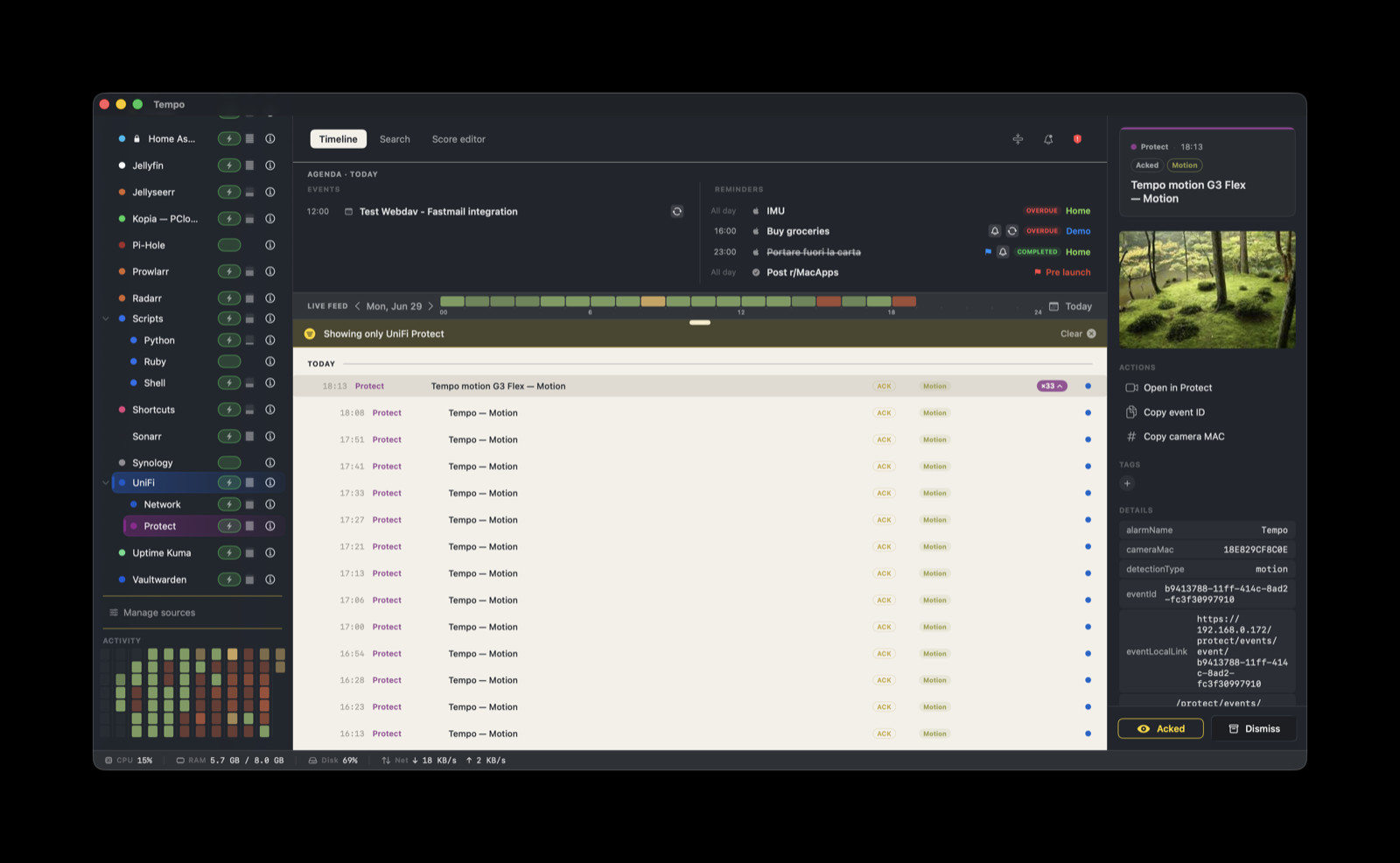
This guide covers how the two sources relate, how to configure each one, what lands on the timeline, the actions each event carries, and the one networking limitation to know about.
How the two sources relate
UniFi Network and UniFi Protect are two independent sources, with two distinct provider identifiers:
com.ubiquiti.unifi.networkcom.ubiquiti.unifi.protect
Each has its own ingestion token and its own score. They are not a single feed split in two. In the Source panel they appear together under one UniFi row, but that row is a semantic container, not a true umbrella source like Scripts or Hazel. It holds no token of its own and produces no events. It only gathers the com.ubiquiti.unifi.* providers under one label, the same way Apple groups Calendar and Reminders under one row. You configure, token, and toggle each UniFi source separately.
The shared #0559C9 color is what visually ties the two together in the timeline.
Setup: UniFi Network
1. Create the token
In Tempo, open Settings → Ingestion and add a token bound to com.ubiquiti.unifi.network. Copy it.
2. Note the endpoint
The controller posts to:
http://<your-mac-ip>:7776/ingest/unifi/networkReplace <your-mac-ip> with the hostname or LAN IP of the Mac running Tempo. The controller is almost always on a different host than your Mac, so use the LAN address, not localhost. Use the plain :7776 port, not the TLS :8776 port (see Known limitations).
3. Add the controller webhook
In the UniFi Network controller, add an alert webhook with:
- URL: the endpoint from step 2
- Method: POST
- Header:
X-Tempo-Token: <token>(the token from step 1) - A custom field setting
providerIdentifiertocom.ubiquiti.unifi.network
Enable the alarm categories you care about. Client connect and disconnect can fire constantly on a busy network. If the feed gets noisy, scope the webhook to device and uplink events, or to a few specific clients, rather than every client on the LAN.
The next alarm the controller fires lands in Tempo’s feed.
Setup: UniFi Protect
1. Create the token
In Settings → Ingestion, add a second token bound to com.ubiquiti.unifi.protect. Copy it. This is a different token from the Network one.
2. Note the endpoint
Protect posts to a dedicated path handled by Tempo’s built-in Protect parser:
http://<your-mac-ip>:7776/ingest/unifi/protectThe parser reads Protect’s alarm payload and the attached snapshot, so there is nothing to map by hand. Use the plain :7776 port here too.
3. Add the Protect webhook
In UniFi Protect, create an alarm and add a Webhook action (a Custom Webhook):
- Delivery URL: the endpoint from step 2
- Method: POST
- Authentication:
bearer, with the Protect token from step 1 - Use Thumbnails: on, if you want the camera snapshot rendered on the event (see Thumbnails below)
Scope the alarm to the cameras and detection types you want, so the timeline stays focused.
Thumbnails
Tempo renders the camera snapshot inline on the event when Use Thumbnails is enabled controller-side. Protect attaches the snapshot as a base64 JPEG to the webhook body, and Tempo shows it above the action list.
Two things to keep in mind:
- Thumbnails are large (roughly 10 to 60 KB each). Tempo keeps them for the period set in Settings → Database / Maintenance, then strips the image from the row to keep the database small. The event itself stays.
- High-motion cameras flood faster with thumbnails on. A camera pointed at a busy street can post constantly, and each event then also carries an image. Scope the alarm to specific detection types and cameras.
The Protect dashboard remains the archive for the clips themselves. The bundled Open in Protect action deep-links back to the event page when you need the original footage.
What you’ll see: UniFi Network
Client connect and disconnect events and device events, with the device name and MAC. The score reads UniFi’s alarmName and alarmKey fields to set severity:
| Alarm | Severity | Badge |
|---|---|---|
| Lost Contact / device down | error | Down |
| Disconnected (device) | error | Disconnected |
| Offline | error | Offline |
| Threat / IPS / IDS | critical | Threat |
| Intrusion | critical | Intrusion |
| Honeypot | critical | Honeypot |
| Rogue AP | critical | Rogue AP |
| Failed / Error | error | Failed / Error |
| Critical | critical | Critical |
| Upgrade failed / scheduled | warning | Upgrade failed / scheduled |
| Restart / Reboot | warning | Restart / Reboot |
| Speedtest failed | warning | Speedtest failed |
| Client Connected / Disconnected | info | Connected / Disconnected |
| Login / Adopted / Roam | info | Login / Adopted / Roamed |
Anything the score does not recognize falls through to the default: info, label Info.
Grouping: a client Disconnected event opens a group keyed on clientMac (2 hour window), and a matching Connected event closes it, so a disconnect and its reconnect read as one entry. Other device alarms repeat-group on deviceMac over a 1 hour window, so a flapping device stays one row.
What you’ll see: UniFi Protect
Camera detections, with the camera name and a link back into Protect. The score reads Protect’s detectionType to set severity:
| Detection | Severity | Badge |
|---|---|---|
| Intruder | critical | Intruder |
| Alarm | critical | Alarm |
Smart detect (smartdetect_*) | warning | Smart detect |
| Person | warning | Person |
| Vehicle | warning | Vehicle |
| Package | warning | Package |
| Face | warning | Face |
| Doorbell ring | warning | Doorbell |
| Motion | info | Motion |
The default is info, label Motion.
Grouping: events repeat-group on cameraMac over a 5 minute window, so a burst of detections from one camera collapses into a single entry.
Actions
UniFi Network
- Open dashboard: opens
https://<controller>/network/default/dashboard - Open client in controller: opens the client page for
deviceMac - Open UniFi dashboard (cloud): opens
https://unifi.ui.com/ - SSH to controller: opens
ssh://root@<controller> - Copy device name: copies
device - Copy MAC address: copies
deviceMac - UniFi docs: opens the UniFi help center
The controller-relative actions use the senderAddress recorded with the event, so they resolve to the controller that sent the alarm.
UniFi Protect
- Open in Protect: opens the event’s local deep link (
eventLocalLink) - Open Protect cloud: opens
https://unifi.ui.com/ - Copy event ID: copies
eventId - Copy camera MAC: copies
cameraMac - UniFi Protect docs: opens the UniFi help center
You can edit, remove, or add actions in Settings → Score Editor. Local edits override the bundled defaults; Reset to bundled defaults brings them back.
Known limitations
Use the plain :7776 endpoint, not the TLS :8776 port. UniFi’s webhook client (both Network and Protect) must POST over plain HTTP. The TLS handshake itself succeeds, but UniFi’s HTTPS request framing is not parsed by Tempo’s TLS listener: the request line and body arrive empty, so the events are dropped. You will see them as 400 - empty body in Settings → Security → audit. This is a UniFi-side framing quirk, not a certificate problem. Because the traffic stays on your LAN and every webhook is bound to a per-provider token, plain HTTP here is a deliberate, supported setup, not a security gap.
UniFi’s webhook payloads also vary by controller version. If events are rejected, open the audit (the shield icon in Settings → Security) to see the raw payload, and adjust the score’s field mapping if a key has moved.
FAQ
Why don’t I see disconnect events for some wired devices (smart TVs, set-top boxes, NAS)?
Because the controller does not always send them. Many devices keep the Ethernet PHY active in standby (smart TVs with Quick Start, streaming sticks waiting for Wake-on-LAN, NAS in low-power mode). The switch sees the link as up, so the controller generates no disconnect event until the device is fully powered off or unplugged. To detect real unreachability for a specific device, add an Uptime Kuma monitor pointed at its IP. Kuma emits a Down event that Tempo can stack alongside the UniFi connect.
Can I get Talk, Access, Connect, or InnerSpace events into Tempo?
Not at launch. UniFi Network and UniFi Protect are the two products bundled today. The com.ubiquiti.unifi container can gather more com.ubiquiti.unifi.* providers under the same UniFi row when the available webhooks and demand line up.
My UniFi alarm doesn’t appear in Tempo at all
Check three things, in order:
- Token binding: in Settings → Ingestion, confirm the token exists, is bound to
com.ubiquiti.unifi.network(or.protect), and the controller sends it (header for Network, bearer for Protect). - Reachability: from the controller host,
curl -v http://<your-mac>:7776/healthshould return 200. A timeout points to the Mac’s firewall or LAN segmentation between the controller and the Mac. - Alarm category enabled: UniFi only sends what you toggled on, in Notifications → Alarms (Network) or per rule in Protect. That setting is independent from the webhook delivery itself.