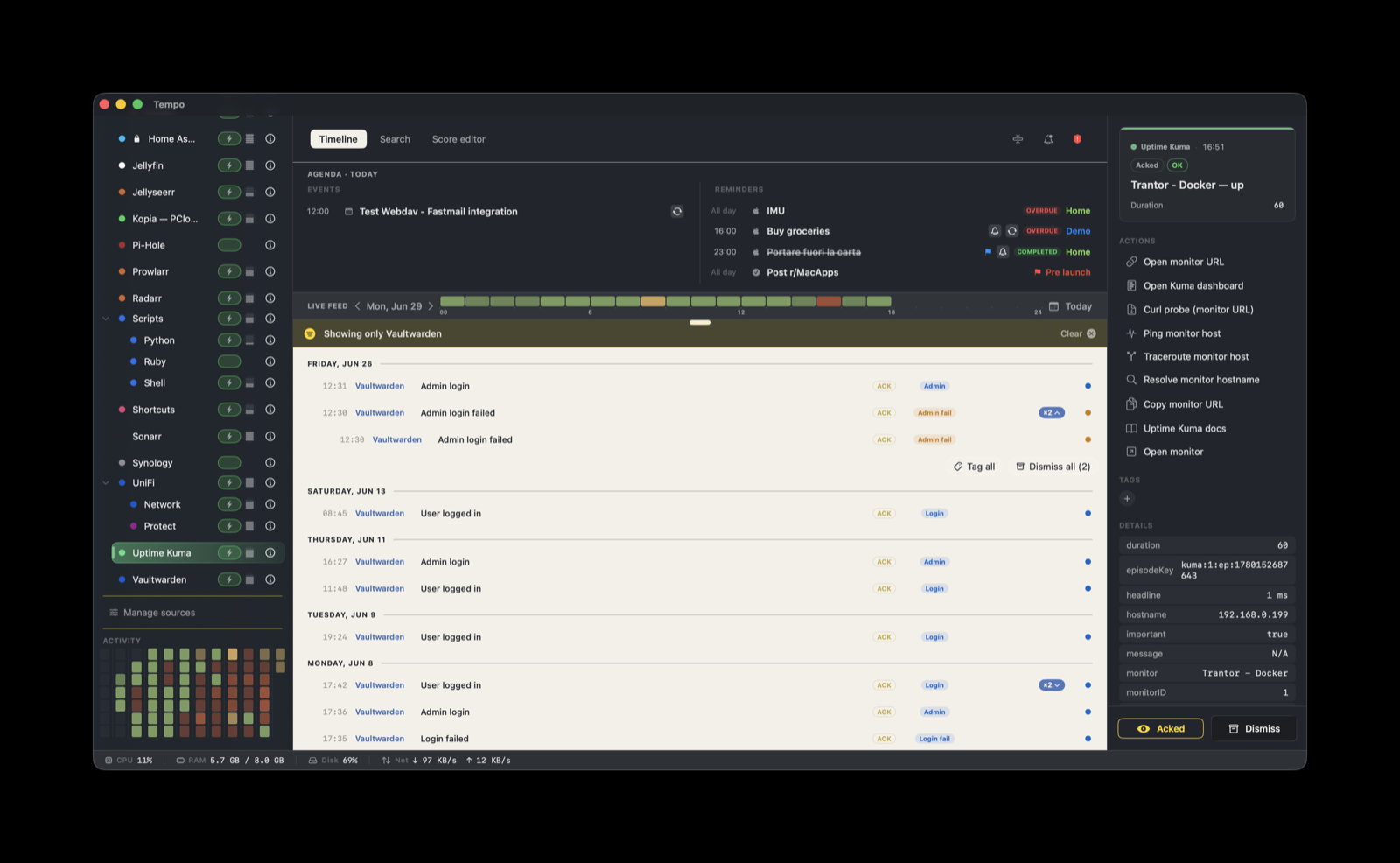
Get your Uptime Kuma monitors on your Mac: point Kuma’s built-in Webhook notification at Tempo and every up, down, and pending event lands on one timeline, right next to the rest of your homelab. No relay, no helper script.
Uptime Kuma is a self-hosted uptime monitor. This score renders the status of every monitor you enable on your Tempo timeline: down, up, pending, degraded, maintenance, or test. It is read-only. The actions probe and inspect the monitored host from your Mac; nothing writes back to Uptime Kuma.
How it works
Uptime Kuma posts to Tempo directly. There is no relay and no helper script to install. Uptime Kuma’s built-in Webhook notification sends a JSON payload to Tempo’s ingestion endpoint on every status change, and Tempo has a native adapter that reads Kuma’s payload shape and turns each notification into a timeline event.
The score is stateful. Each monitor is one subject, keyed by its Uptime Kuma monitor ID. Repeated notifications for the same monitor update that one row in place rather than appending a new entry, so a monitor that re-notifies on every check stays a single line on the timeline. A monitor going down opens a row; coming back up closes it; further down or pending notifications continue the same row.
Uptime Kuma  (Webhook notification, on each status change)
      |  HTTP POST with bearer token header
Tempo ingestion server  on <your-mac-ip>:7776
      |
native Kuma adapter  (parses the payload, one row per monitor ID)
Setup
You need Tempo running with the Uptime Kuma score enabled in Manage Sources, an Uptime Kuma instance that can reach your Mac on the LAN, and one ingestion token.
- In Tempo, open Settings → Ingestion and add a token bound to
com.uptime-kuma. Copy it. - Note your Tempo endpoint:
http://<your-mac-ip>:7776/ingest. Use the IP address of the Mac that runs Tempo, reachable from the host that runs Uptime Kuma. - In Uptime Kuma, open Settings → Notifications → Setup Notification and choose Webhook as the notification type.
- Fill the form:
- Post URL:
http://<your-mac-ip>:7776/ingest - Content Type:
application/json(the defaultapplication/jsonbody, not the form-encoded option) - Additional Headers:
{ "X-Tempo-Token": "<your-token>" }, using the token from step 1.
- Post URL:
- Save the notification.
- Enable the notification on the monitors you want in Tempo. To cover everything in one step, turn on Apply on all existing monitors (and enable it as a default on new monitors) when you save.
What you’ll see
One stateful row per monitor, classified by the status Uptime Kuma reports:
| Severity | Label | Status |
|---|---|---|
critical | Down | monitor is down |
warning | Pending | a down result is being confirmed by retries |
warning | Degraded | monitor reports degraded |
ok | Up | monitor is back up |
info | Maintenance | monitor is under maintenance |
info | Test | Uptime Kuma test notification |
If a notification arrives without a status the adapter recognizes, the event keeps the default info severity with the label Info.
Grouping and actions
Down and pending notifications for a monitor continue its row instead of creating new entries, so a flapping or persistently down monitor reads as one line rather than one row per check. The grouping is keyed by the Uptime Kuma monitor ID. An important down notification opens the row within a two-hour window; an up notification closes it.
Every event carries these action buttons:
- Open monitor URL: opens the monitored endpoint (
${metadata.url}) in your browser. - Open Kuma dashboard: opens your Uptime Kuma instance at
http://${metadata.senderAddress}:3001. - Curl probe: opens Terminal with
curl -ksSIagainst the monitor URL, printing the HTTP status and total time. - Ping host: opens Terminal with
ping -c 5against the monitored host. - Traceroute host: opens Terminal with
tracerouteto the host. - Resolve hostname: opens Terminal with
dig +shortfor the hostname. - Copy monitor URL: copies the monitor URL to the clipboard.
- Uptime Kuma docs: opens the Uptime Kuma wiki.
Actions whose template fields are missing from the payload render disabled. A monitor without a resolvable hostname, for example, leaves the ping, traceroute, and resolve actions inactive.
Troubleshooting and limitations
- No events arrive: confirm Uptime Kuma can reach the Mac on port 7776. Kuma usually runs on a different host, so the Post URL must use the Mac’s LAN IP address, not
localhost. Send a test from the notification form to check the path end to end. - The endpoint rejects the request: the token is wrong, missing, or not bound to
com.uptime-kuma. The header must beX-Tempo-Tokenwith the exact token from Settings → Ingestion. Rejections are recorded in the ingestion audit log. - Events arrive but render without styling: the Uptime Kuma score is not enabled. Turn it on in Manage Sources.
- The Open Kuma dashboard button opens the wrong place: it targets port
3001on the sending host. If your Uptime Kuma instance runs on a different port or behind a reverse proxy, use Open monitor URL instead, or edit the action in the Score Editor. - A monitor you enabled never appears: the Webhook notification is not attached to that monitor. Open the monitor’s edit page and confirm the Tempo notification is selected.