Apple Shortcuts can put your own events on the Tempo timeline: a Focus mode turning on, a geofence trigger, a Mail rule, a scheduled check, anything Shortcuts can run. There are two ways to send an event. A webhook (a Get Contents of URL action) is the general path: it runs on both a Mac and an iPhone or iPad, and it can carry the metadata the score classifies on. A native macOS action also exists for simple events, covered at the end.
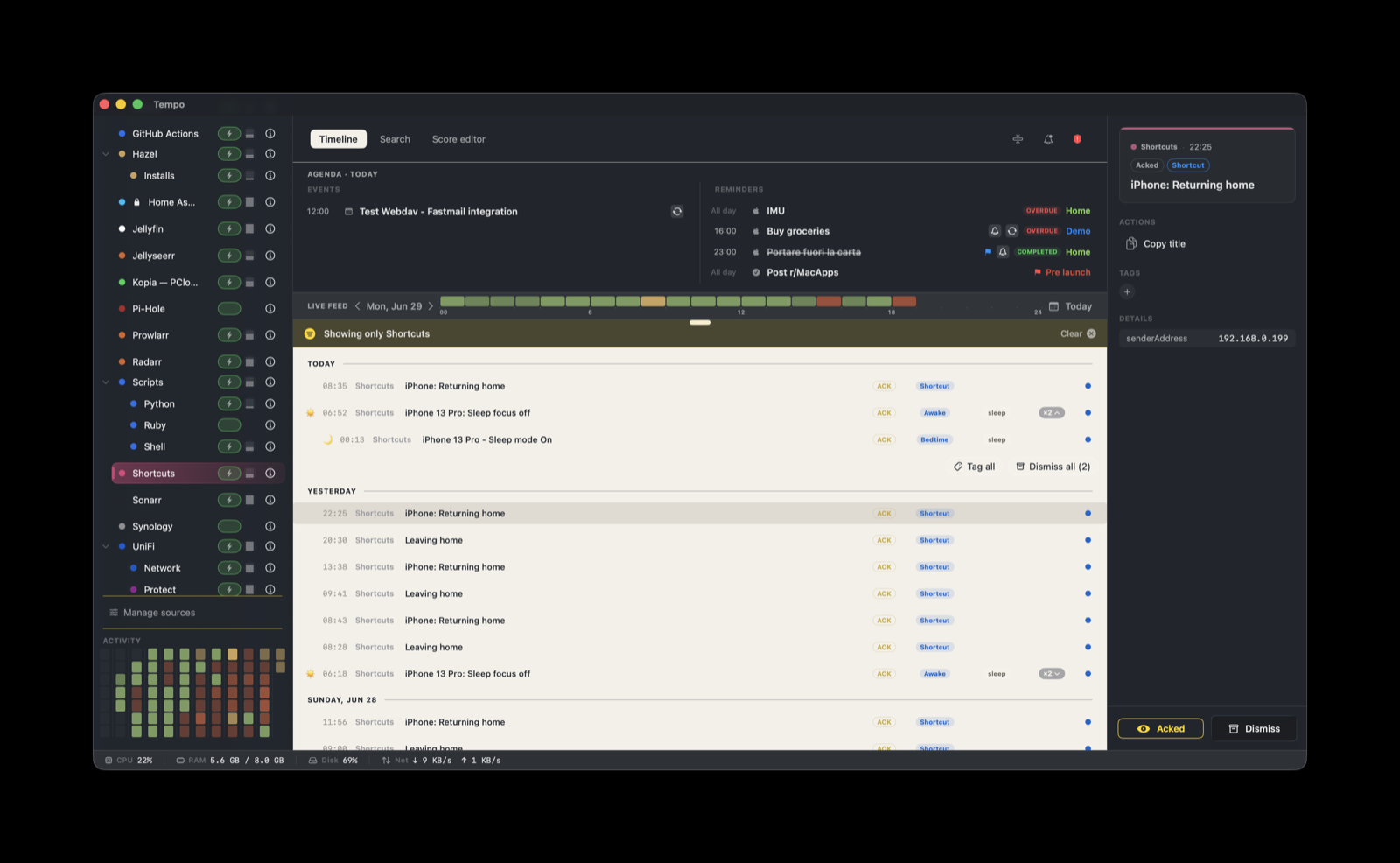
The score is built in and seeded on first launch. There is nothing to install.
Send an event with a webhook
This path runs anywhere Shortcuts runs, and it can send the category and state keys the score reads to label and group events.
First, in Tempo Settings → Ingestion, create a token bound to com.shortcuts. You do this once.
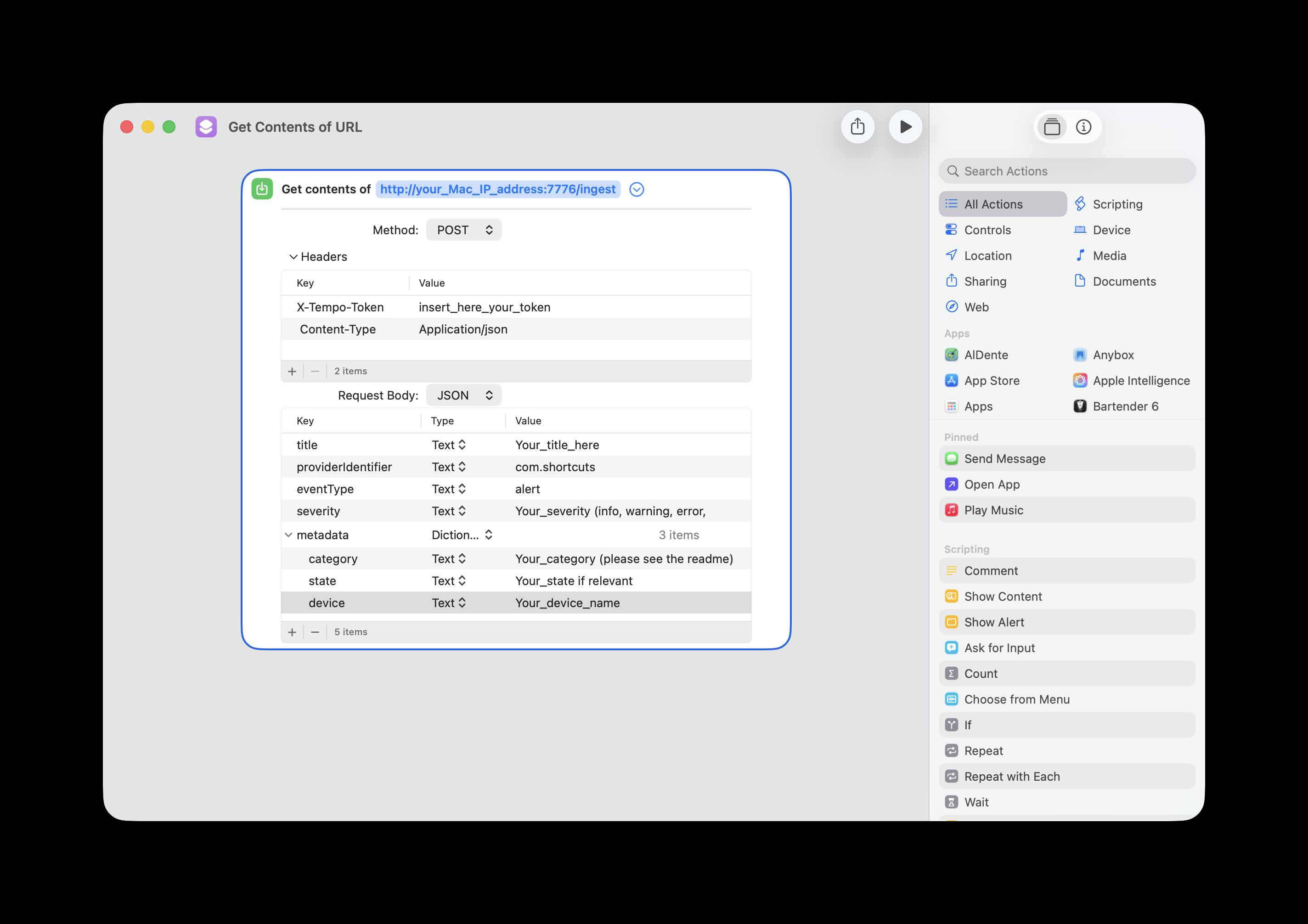
- Add a Get Contents of URL action.
- URL:
http://<your-mac-lan-ip>:7776/ingest. The device must reach the Mac: same LAN, or a VPN such as Tailscale when you are away (see below). - Method:
POST. - Headers:
X-Tempo-Tokenset to thecom.shortcutstoken, andContent-Typeset toapplication/json. - Request Body: switch it to JSON and add the fields:
{
  "title": "Your title here",
  "providerIdentifier": "com.shortcuts",
  "eventType": "alert",
  "severity": "info",
  "metadata": {
    "category": "location",
    "state": "arrived",
    "device": "iPhone"
  }
}
severity is read directly, because Tempo honors a sender-provided severity, so info, warning, error, or critical set the badge with no score rule needed. category and state drive the label and indicator from the table below. The metadata block is optional: a minimal body with title, providerIdentifier, eventType, and severity also works.
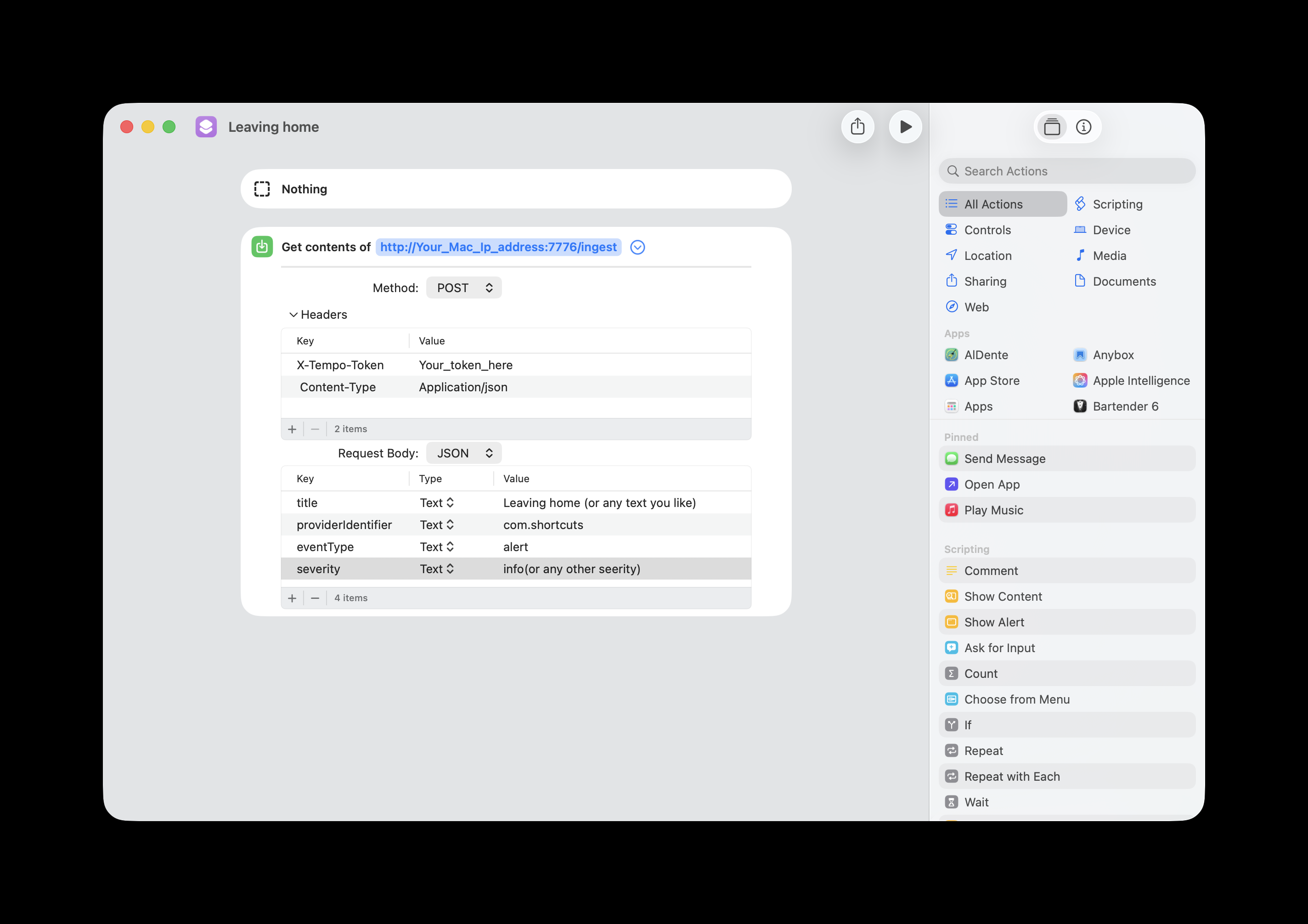
Each Shortcut needs its own copy of this action. The Get Contents of URL block is not shared across Shortcuts: duplicate it and adapt the title, severity, and metadata in every Shortcut or automation you build, so each one reports its own event. This is the same ingestion contract any script uses (see Scripts), so an iOS event is classified exactly like a Mac one. A geofence trigger that fires when you arrive at or leave home fits this pattern.
Metadata the score reads
The score reads a category key, and sometimes a state key, to assign a severity label, an indicator emoji, and a tag. Set these in the JSON body and events sort themselves:
category | state | Label / indicator |
|---|---|---|
sleep | on | Bedtime 🌙 |
sleep | off | Awake ☀️ |
focus | on / off | Focus on / Focus off 🔕 |
location | arrived | Arrived 📍 |
location | left | Left 🚶 |
battery | low | Battery low 🪫 (warning) |
battery | (other) | Battery 🔋 |
automation | tagged automation ⚙️ |
Anything that does not match a rule lands with the default Shortcut label at info severity, so events are never lost, just unclassified. Two pairs fold into a single grouped entry: sleep on/off open and close one sleep span, and focus on/off open and close a focus span keyed by metadata.focus. The closing event resolves the one it opened instead of stacking a second row.
These indicator emojis are not fixed. Change any of them, and the tags, in the Score Editor’s Tags & emoji tab.
Reaching the Mac from anywhere
Use the Mac’s LAN IP as the URL host, for example 192.168.1.20. At home it connects directly, with or without a VPN running.
To make the same Shortcut work when you are away, set up Tailscale with subnet routing: install it on the device, and run it on a machine on your LAN (the Mac itself, or a small always-on host) that advertises the local subnet as a route. The device then reaches the Mac’s LAN IP through the tailnet, with no change to the Shortcut. Prefer this over hardcoding the Mac’s 100.x.y.z Tailscale address: that address stops working at home the moment Tailscale is off, while the LAN IP keeps working in both cases. The traffic stays inside your tailnet, so no port is exposed to the public internet. A traditional VPN back to the home network behaves the same way.
If you restrict the com.shortcuts token with an IP allowlist in Settings → Ingestion, allow your LAN subnet, for example 192.168.1.0/24. A subnet router often rewrites the source to a LAN address, so the subnet range covers both the local and the remote case; if yours forwards the original tailnet address instead, also allow Tailscale’s 100.64.0.0/10 range.
What you’ll see
Each Shortcut run reads as one event on the timeline, labeled and tagged per the table above, with its indicator emoji when the category matches. Battery-low events are raised to warning; everything else stays at info unless the body sets a higher severity.
Every event carries one action button:
| Action | What it does |
|---|---|
| Copy title | Copies the event title to the clipboard. |
Sleep and focus pairs collapse into a single span on the timeline rather than two separate rows, so a night or a focus session reads as one entry with a start and an end.
Native action for simple events (macOS)
Tempo also ships a native Shortcuts action, Send Event to Tempo, for events that do not need classification. It is not the only way to send to Tempo, and not the most capable: use it when a plain titled event with a severity is all you want.
It runs only on the Mac, because it posts to Tempo on 127.0.0.1, and it sends a fixed set of fields: a Title, an optional Body, a Level (the severity), and a Source (default com.shortcuts). It does not send category or state, so it cannot drive the labels and indicators in the table above. Events from it land with the default Shortcut label at the Level you set.
To use it: add the Send Event to Tempo action in the Shortcuts app (search “Tempo” in the action picker inside a shortcut), fill in the Title and Level, and attach it to a trigger. It needs a token bound to com.shortcuts, and the action’s Source field selects it; if none exists it asks you to create one. For anything that uses category or state, use the webhook above.